
Editing a PDF is rarely as simple as opening the file and changing the text. Whether you are updating a resume, extracting content from a report, revising a contract, or working with a scanned document, converting the PDF to Word is often the most practical way to make changes.
But conversion quality can vary a lot. Some tools handle simple text files well, but lose formatting when the PDF includes tables, images, columns, or scanned pages.
In this guide, we tested seven PDF to Word converters with different document types to see how well they preserve formatting, support OCR, handle larger files, and produce editable DOCX output.
How We Tested and Picked the Best PDF to Word Converters
To make the comparison more practical, we tested each PDF to Word converter with several common document types, including a text-based research paper, a resume with columns and icons, a business report with tables, a scanned PDF, and a large file over 25 MB.
After conversion, we checked whether the layout, fonts, images, tables, and column structures were preserved, and whether the exported DOCX file was easy to edit. For scanned documents, we also reviewed OCR accuracy and looked for common issues such as misread characters or missing text.
Beyond conversion quality, we also considered ease of use, file size limits, free-plan restrictions, OCR availability, privacy policies, and whether key features required a paid upgrade.
7 Best PDF to Word Converters in 2026: Hands-On Reviews
TeraBox PDF to Word Converter (Best for Large Files and Online DOCX Conversion)
TeraBox PDF to Word Converter stood out in our test because it handled a 25 MB file without upload errors, while some other converters struggled with the same file. In actual use, the workflow also felt easier than many basic online converters. The upload area supports drag-and-drop, paste, and file selection, so we did not have to go through extra setup steps before starting the conversion.
The whole process stayed inside the browser, and once the conversion was complete, the DOCX file was available from the result page with a clear download button. The share option was another practical touch for users who need to pass the converted file to someone else for review or editing.
In our test, the research paper and resume converted smoothly. Paragraph spacing, font sizes, and the overall document structure were mostly preserved. The business report was more challenging. Simple tables converted well, but merged cells and shaded rows still needed a few manual adjustments in Word.
For the scanned PDF, OCR produced readable and editable text in most printed sections, with only a few characters in low-resolution areas needing review. Handwritten content was less reliable, which is common for OCR-based PDF conversion tools. TeraBox also meets basic privacy expectations with SSL-protected conversion and automatic file deletion from its servers.
Best For: Users who need an online PDF to Word converter with up to 100 MB file support, built-in OCR for scanned PDFs, and no software installation.
Adobe Acrobat Online (Best for Professional Formatting Accuracy)
Adobe Acrobat Online performed strongly across the five test files, especially when formatting accuracy mattered. It handled a file over 30 MB during testing, and the converted DOCX required fewer layout fixes than many basic online converters.
The research paper converted cleanly, with headings, paragraphs, and footnotes mostly preserved. The resume also kept its two-column structure, font style, and overall layout well enough for quick editing.
The business report showed Adobe’s advantage more clearly. Images, shaded rows, and most table structures were preserved with better accuracy, although users should still review merged cells and detailed formatting before using the final file.
For the scanned PDF, Adobe’s OCR-supported workflow produced editable text with relatively few issues in standard printed sections. However, OCR access, usage limits, and advanced features may depend on the plan or account status, so users should check the available options before uploading larger or scanned files.
Files are processed through Adobe’s online converter, which is convenient for quick document conversion. For contracts, business files, or sensitive documents, users should still review Adobe’s privacy and data retention policies before uploading.
Best For: Professionals handling contracts, branded reports, or layout-heavy documents where formatting accuracy is non-negotiable.
ILovePDF (BestOnline Converter for Quick Tasks)
ILovePDF was one of the fastest tools in our test. The interface is simple, the upload process is straightforward, and a basic text-based PDF can usually be converted and downloaded within a short time. For simple documents, the output was clean and required little manual correction.
However, its performance dropped when handling more complex layouts. The resume’s two-column structure partially shifted, and some content moved out of position. In the business report, merged table cells were not preserved accurately and had to be fixed manually in Word.
Scanned PDFs were also less suitable for the standard conversion workflow. Without OCR access, the converted file may remain image-based rather than fully editable, which limits its usefulness for scanned documents. The free usage also comes with file size and feature limitations, so users with larger files, OCR needs, or more complex formatting may need to consider other options.
Best For: Quick, no-sign-up conversions of simple text-based PDFs. Not suitable for scanned documents without a paid plan.
Smallpdf (Best for Beginners and Occasional Use)
Smallpdf had the most polished user experience on the list, with clearly labelled steps, reliable drag-and-drop uploading, and a near-zero learning curve for first-time users. Research paper converted accurately to DOCX and didn’t require cleaning before editing.
For the resume, formatting drifted to the two-column layout and was not affected by the simple layout. The business report converted reasonably well, but merged cells and shaded rows did not remain perfectly aligned, requiring some manual adjustments in Word.
The heavy graphic or dense column structure documents suffered compared to the Adobe or TeraBox graphics. Unlike iLovePDF, editing scanned PDFs is not possible with the free version; the text is not editable.
The free plan is not suitable for large-file usage, as it only allows 2 tasks per 24 hours and 15 MB per file. Files are encrypted in transit and automatically deleted after an hour.
Best For: First-time users and anyone who converts simple documents occasionally and does not need OCR support.
PDF Candy (Best for Basic Multi-Format Conversions)
PDF Candy is a simple online tool for users who need more than basic PDF to Word conversion. Its interface is easy to understand, and it supports a wide range of PDF-related tasks, which makes it useful for quick document handling across different formats.
In our test, the research paper converted with headings, paragraphs, and page breaks mostly preserved, though a few clean-ups were still needed. The business report was less accurate. Most of the text was transferred correctly, but merged table cells and shaded rows did not stay fully aligned and required manual reformatting in Word.
For scanned PDFs, PDF Candy performed better on clean printed scans than on low-resolution or poorly scanned documents. OCR results were readable in many sections, but longer or lower-quality scans produced more recognition errors and needed manual correction. Multi-column documents also showed occasional formatting inconsistencies after conversion.
PDF Candy works best for simple files, clean scans, and users who need access to multiple PDF tools in one place. However, larger files, complex tables, and layout-heavy documents may require extra editing or an upgraded plan depending on usage limits.
Best For: Users who need free OCR or work with large files that other free converters reject on upload.
WPS PDF to Word Converter (Best for Layout-Heavy Documents)
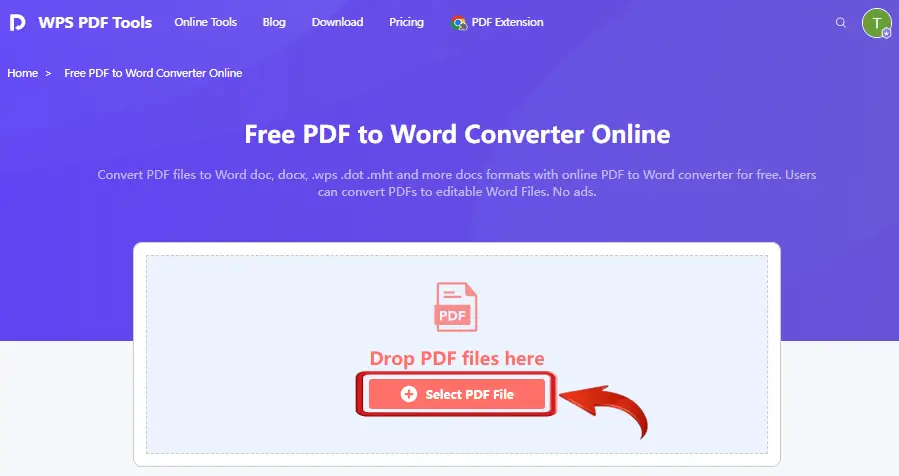
WPS offers both an online converter and a desktop version. In our test, the desktop version performed better with structured documents. The research paper converted cleanly, with headings, paragraphs, and page breaks mostly preserved. The two-column resume also kept its overall layout, although a few spacing adjustments were still needed.
The business report showed a clearer difference between the two versions. The desktop version handled text flow, paragraph spacing, and section structure more consistently, while the online converter struggled with complex tables. Some merged cells and multi-cell table sections were split or misaligned and required manual correction in Word.
WPS is less suitable for scanned PDFs in the basic online workflow because OCR is only available in the Pro version. The online converter also has a relatively low file-size limit, around 10 MB, which makes it less practical for larger PDFs.
Files are transferred through encrypted connections, but users working with sensitive documents should still review WPS’s privacy and file-retention policies before uploading.
though users handling sensitive documents should review WPS’s privacy and file-retention policies before uploading.
Nitro PDF (Best for Business and Team Workflows)
Unlike any other tools on the list, Nitro PDF is not designed for occasional personal use but rather as an enterprise-class solution for teams that handle large volumes of PDFs regularly. It gave the most dependable results among all five file types, and it produced the most consistently accurate output alongside Adobe Acrobat.
The research paper retained its headings, footnotes, page breaks, and paragraph structure without noticeable changes. The two-column resume also converted accurately, with fonts, icons, and layout elements remaining in their original positions.
The table structure of the business report was extremely complicated and needed no corrections. Fewer characters were misread in the scanned document with OCR than with any other tool we tested. The DOCX files produced were immediately ready for editing without reformatting—no free trial. The file size limit varies by subscription.
SOC 2 Type II is another privacy credential, alongside ISO 27001, which applies to organizations that manage sensitive or regulated documents.
Best For: Business teams and enterprise users who need reliable, high-accuracy PDF conversion at volume with strong compliance standards.
PDF to Word Converter Comparison: Accuracy, OCR, File Size, Privacy, and Ease of Use
| Tool | Best For | Formatting Accuracy | OCR Support | File Limit | Access / Usage Limits | Privacy / Security | Main Limitation | Ease of Use |
| TeraBox | Large files, OCR-supported browser-based conversion | Excellent — strong on standard documents and resumes; complex tables may need touch-ups | Yes, including scanned PDFs | Up to 100 MB
|
Browser access; account or usage limits may vary | SSL encryption; files deleted from servers automatically | Complex multi-column layouts and merged tables may need manual editing | Easy browser-based workflow; no installation required |
| Adobe Acrobat | Professional formatting accuracy | Excellent — strongest overall accuracy across tested files | Available in paid plans | Up to 100 MB for basic online conversion | Limited online use available | Encrypted transfer; users should review Adobe’s retention policy for sensitive files | Usage limits and OCR access may require a paid plan | Very simple workflow; no sign-up needed for basic conversion |
| iLovePDF | Quick simple PDF conversions | Good — works best with text-only and simple PDFs | Available with paid access | Around 25 MB for basic use | Basic use available with feature limits | HTTPS transfer; files are typically deleted after a limited period | Less reliable with scanned PDFs, complex layouts, and merged tables | Extremely easy; minimal interface |
| Smallpdf | Beginners and occasional users | Good — clean output on simple documents | May require paid access | Around 15 MB for basic use | Limited daily use available | Encrypted transfer; files are typically auto-deleted after a limited period | Daily task limits, file-size limits, and limited OCR access | Beginner-friendly; polished interface |
| PDF Candy | Basic multi-format PDF tasks | Acceptable — works better on simple files and clean scans | Available, but results vary by scan quality | File limits may vary by usage or plan | Basic access available with limits | Secure transfer; files are removed after a limited retention period | Inconsistent formatting on complex documents; larger files may require upgraded access | Simple interface; useful for basic PDF tasks |
| WPS PDF | Desktop-based structured document conversion | Good — research papers and resumes converted well; desktop version performed better than online version | Pro only | Around 10 MB for online use | Basic online access available | Standard encrypted transfer; privacy policy review recommended for sensitive files | OCR requires Pro; online version is limited for large files and complex tables | Easy online workflow; desktop version offers more control |
| Nitro PDF | Business and team PDF workflows | Excellent — strong formatting accuracy with minimal post-conversion edits | Available in paid plans | Depends on plan | Business-focused paid access | SOC 2 and ISO 27001 certified | Not ideal for casual one-time users; designed more for organizations | Professional workflow; may feel less lightweight for beginners |
The table below summarizes how each tool performed across the key evaluation criteria.
FAQsabout PDF to Word Converter
What is the best PDF to Word converter in 2026?
It depends on your requirements. Adobe Acrobat leads in formatting accuracy. TeraBox is a strong option for browser-based PDF to Word conversion with OCR and up to 100 MB file support. ILovePDF and Smallpdf are great for quickly converting simple text documents. If you need OCR for clean scans, PDF Candy is also worth considering. Nitro PDF is designed for enterprise teams with high-volume workflows.
How can I convert a PDF to Word without losing formatting?
Use high-fidelity tools like TeraBox Adobe Acrobat, or Nitro PDF. Most reliably converts to single-column, text-only documents. Even the most advanced converter is unlikely to handle documents with complex layouts, tables, and/or custom fonts.
Can I convert scanned PDFs to editable Word documents?
Yes, but the converter needs OCR support. In our test, TeraBox was able to recognize printed text in scanned PDFs and turn it into an editable DOCX file. Other converters may limit OCR to paid plans or produce less accurate results on poor-quality scans, so it is worth checking OCR availability before uploading scanned documents.
Are online PDF-to-Word converters safe?
All of the reputable tools use encrypted networks and delete your documents once you are finished with them. Do not upload a document containing sensitive information unless the tool provider explicitly states in their privacy policy that your documents will be deleted.
What is the difference between PDF to Word and PDF to DOCX?
When people need an editable file, they will generally look for something that is “PDF to Word. The file format produced by the current versions of MS Word is DOCX. All seven of these tools create .docx files, which are compatible with Microsoft Word, Google Docs and LibreOffice. Some older tools may still export in the legacy .doc format; be sure to check for any compatibility issues with older software.
Conclusion
The best pdf to word converter depends on your document type, layout complexity, OCR needs, file size, and privacy requirements. Simple text-based PDFs are usually easy to convert, while scanned files, complex tables, multi-column layouts, and large documents often require a more capable tool.
TeraBox is a practical browser-based option for users who need to convert larger PDF files online with OCR-supported editing and no software installation. You can try it when you need a more convenient way to turn PDFs into editable Word documents.
Regardless of the tool you choose, it is still worth reviewing the final DOCX before editing or sharing it, especially when the original PDF contains tables, scans, or detailed formatting.